What is Ambient Occlusion and Why Does It Matter?
Ambient occlusion is one of those techniques that's hard to notice when it's done well — but immediately obvious when it's missing. It's the subtle darkening in corners, crevices, and contact points that makes 3D objects feel grounded and physically real. This guide explains what it is, how it works, and how to use it effectively.
What is Ambient Occlusion?
Ambient occlusion (AO) is a shading technique that calculates how much ambient light reaches a given point on a surface. Areas that are open and exposed receive full ambient light. Areas that are tucked into corners, creases, or tight spaces receive less ambient light because surrounding geometry blocks it — they're occluded.
In the real world, this happens constantly. Look at the corner where two walls meet — it's always slightly darker than the middle of either wall, even in a brightly lit room. Look at where a mug sits on a desk — there's a subtle shadow ring at the contact point even without a direct light source causing it. That's ambient occlusion.
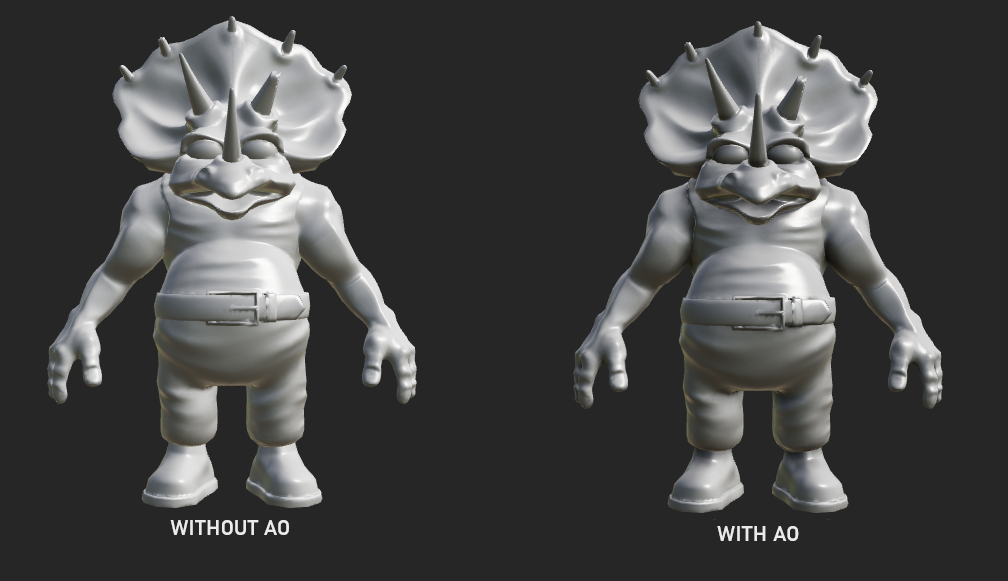
How Ambient Occlusion Works
To calculate AO, the renderer casts a large number of rays from each point on a surface outward in a hemisphere shape. It then counts how many of those rays hit nearby geometry before escaping into open space. A point that has many rays blocked by nearby surfaces gets a dark AO value. A point with few blocked rays gets a bright value.
Imagine standing in the middle of a field — you can see the full sky in every direction. Now imagine standing in a narrow alley — most of the sky above you is blocked by the walls. The alley is naturally darker even in the absence of direct shadows. AO simulates this effect for every point on every surface.
White (value = 1.0)
The point is fully open to ambient light. No nearby geometry blocks the rays. Flat open surfaces, outer edges, and convex areas will typically be white.
Black (value = 0.0)
The point receives very little ambient light. Tight crevices, deep corners, inside holes, and contact points with other surfaces will be fully black or very dark.
The result is a grayscale map where the brightness of each pixel tells you how much ambient light that surface point receives. This map is the AO map — and it's one of the core textures in a PBR workflow.
The AO Map
An AO map is always a grayscale image. White pixels represent areas fully exposed to ambient light. Black pixels represent areas that are heavily occluded. The majority of a typical AO map is white or near-white — only corners, contact edges, and tight gaps go dark.
AO maps are almost always stored as a single channel (grayscale) image and exported as PNG. In many PBR pipelines, particularly when targeting Unity or Unreal, the AO map is packed into the green channel of a combined texture alongside Roughness and Metallic — this is called an ORM texture (Occlusion, Roughness, Metallic) and reduces the number of texture samples the GPU needs to perform.
Baked AO vs Realtime AO
There are two main ways to get AO into your scene. Understanding the difference helps you choose the right approach for your project.
| Type | How it works | Best for | Cost |
|---|---|---|---|
| Baked AO | Pre-calculated and stored in a texture map at export time. Loaded as a texture at runtime. | Static geometry, props, environment assets, characters | Zero runtime cost — it's just a texture lookup |
| SSAO (Screen Space) | Calculated in real time using only what's visible on screen. Approximation of true AO. | Dynamic scenes where geometry moves and changes | Moderate GPU cost, lower quality than baked |
| RTAO (Ray Traced) | Fully ray-traced ambient occlusion computed in real time. | High-end PC games and cinematics | High GPU cost, highest quality |
For most game assets — props, characters, environment pieces — baked AO is the right choice. It costs nothing at runtime, looks great, and gives you full control over the result. Realtime AO methods like SSAO are typically added on top by the engine as a post-process effect for dynamic interactions.
How to Use an AO Map in Your Material
Once you have a baked AO map, plugging it into your material is straightforward in every major engine. The AO map is always multiplied against the base color — it darkens areas that are occluded without affecting the hue of the surface color.
Plug your AO map into the Occlusion Map slot in the Standard Lit material. Unity multiplies it against ambient lighting automatically.
Connect your AO texture to the Ambient Occlusion input pin in the Material Editor. Unreal applies it to indirect lighting contributions.
In a StandardMaterial3D, enable AO and assign your texture to the AO Texture slot. Set AO Light Affect to taste.
A common technique is to also multiply your AO map against the Albedo (color) map before plugging it in. This bakes the AO darkening directly into the color channel, giving you more control over how strongly the occlusion affects the final look regardless of engine-specific AO settings.
AO in dedicated slot
Engine applies AO to ambient/indirect lighting only. Direct lighting is unaffected. More physically accurate behavior.
AO multiplied into Albedo
AO darkening is always visible regardless of lighting setup. More art-directed control, less physically accurate but widely used.
Baking AO in Trumble
Trumble's Bake tool generates an AO map directly from your mesh geometry in the browser. The baker casts rays from the surface of your low-poly mesh and records how much of the hemisphere is blocked by the mesh itself or any cage geometry you define. The result is exported as a grayscale PNG ready to import into Unity, Unreal, Godot, or any other engine.
A few settings that matter when baking AO in Trumble:
| Setting | What it does | Recommended starting value |
|---|---|---|
| Ray count | Number of rays cast per texel. More rays = smoother result, longer bake time. | 64–128 rays for draft, 512+ for final |
| Max distance | How far rays travel before being ignored. Controls how large the AO influence radius is. | Start at 10–20% of your mesh's bounding box size |
| Bias | Prevents self-intersection artifacts where the surface incorrectly occludes itself. | 0.001–0.01 depending on mesh scale |
| Output resolution | Texture size of the baked AO map. | Match your other texture maps (2048 or 4096 for final) |