Upgrading to Pro
Trumble is free to use forever. Pro removes ads from the workspace for $5/month — same tools, same layout, no interruptions. This guide walks you through creating an account and upgrading in just a few clicks.
Free vs Pro
Both plans give you full, unrestricted access to every tool in Trumble — Texture, Paint, Bake, and everything on the roadmap. The only difference is ads.
- ✓ All current tools
- ✓ All future tools
- ✓ Browser-based, no install
- ✕ Workspace ads displayed
- ✓ Everything in Free
- ✓ No ads in the workspace
- ✓ Full workspace layout
- ✓ Supports ongoing development
Create an Account
You need a Trumble account before you can upgrade to Pro. Creating one is free and takes under a minute.
- Go to trumble.app and open the app by clicking Start Texturing.
- In the top-right corner of the app, click Login / Sign up.
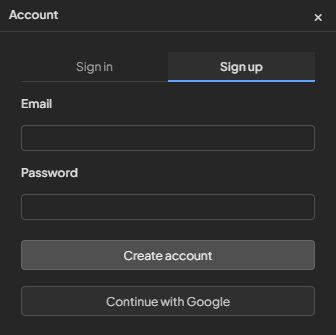
- The account panel slides open. Click Sign up at the top of the panel.
- Enter your email address and choose a password, then click Sign in — or use Continue with Google for one-click sign-up with your Google account.
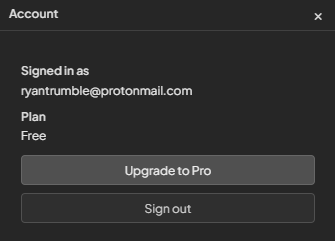
- You're now signed in. Your account name will appear at the top of the panel and your plan will show as Free.
Upgrade to Pro
Once you're signed in, upgrading to Pro takes two clicks from within the app — no need to visit a separate billing page.
- Click Login / Sign up in the top-right corner of the app. Because you're already signed in, the account panel opens showing your account details.
- You'll see your current plan listed as Free. Below it, click Upgrade to Pro.
- You'll be taken to a secure checkout run by Paddle — the payment platform we use for Pro subscriptions (same stack many SaaS apps use). Enter your payment details there; billing is $5/month.
- Once payment is confirmed, your plan updates to Pro immediately. Ads are removed from the workspace straight away — no restart needed.
Managing Your Plan
After upgrading, your plan badge in the account panel changes from Free to Pro. Everything else in the app stays exactly the same — same tools, same layout, just no ads.
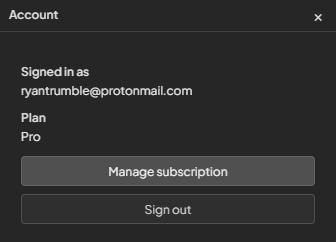
To cancel or update your billing details, click Manage billing in the account panel. This opens the billing portal where you can view invoices, update your payment method, or cancel your subscription.
If you cancel, your Pro access continues until the end of the current billing period. After that your account reverts to Free automatically — you won't lose any of your work or settings.